
Authenticator App - 2FA
iKame Applications - Begamob GlobalTools
4.418.00 Reviews
- Version
- 1.1.4
- Installs
- 100.00K
- Age Rating
- Everyone
Screenshots
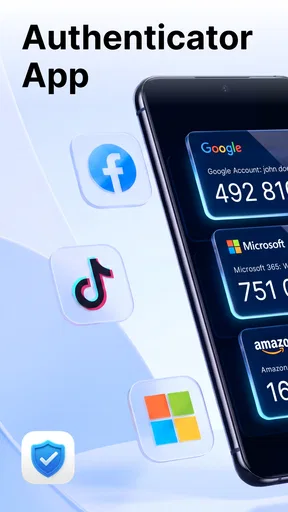
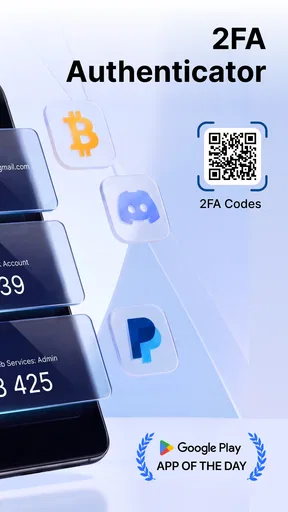
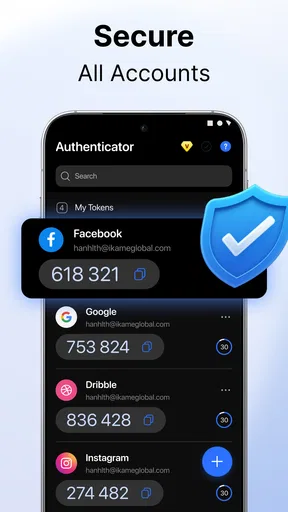
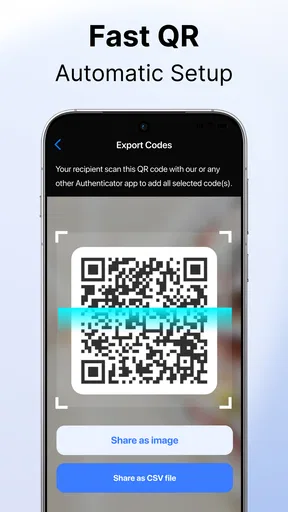
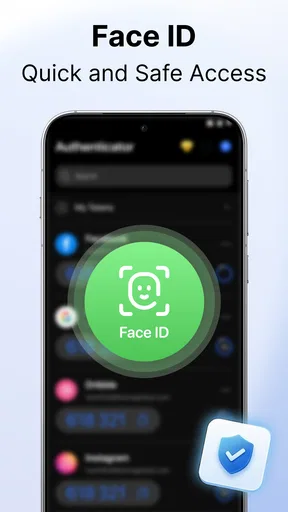
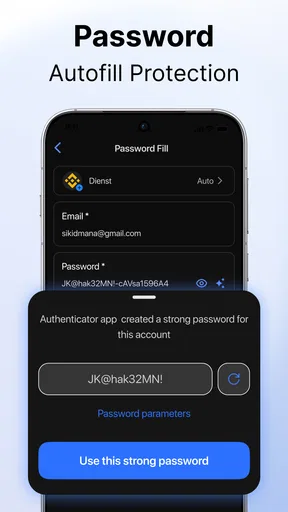
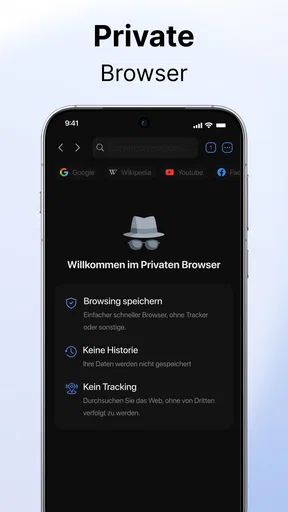
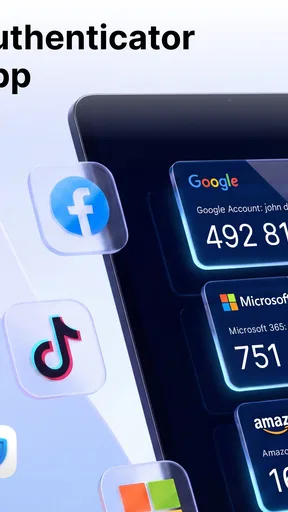
Our Review of Authenticator App - 2FA
 Analysis by Appyee
Signing in should be a quick confirmation, not a small technology project. Authenticator App - 2FA is built for that everyday gap between entering a password and proving that the account really belongs to you. I tried it as a tools app for managing one-time passcodes, and its appeal is easy to understand: it gives your important logins a separate security step without asking you to rely only on text messages.
The app comes from iKame Applications - Begamob Global and is available free of charge for everyone. Its current version is 1.1.4, and it works on devices running Android 8.0 or later. That combination makes it accessible to many older phones, although the experience still depends heavily on how carefully you set it up and how well you protect the device itself.
What using Authenticator App - 2FA feels like in real life
The first thing I noticed is that this is not an app I open for entertainment or casual browsing. It stays quiet until another service asks for a verification code. That is a good quality for a security tool. Once an account is connected, the useful habit is simple: open the authenticator, find the matching account, read the changing code, and enter it on the sign-in screen.
That workflow is more dependable than waiting for a message to arrive, especially when mobile reception is weak or text delivery is delayed. At the same time, it is not completely effortless. You have to keep the phone available, unlock the app at the right moment, and identify the correct account when several entries are listed together. For people with only a few protected accounts, this is straightforward. For someone managing many work, shopping, banking, and social logins, organization becomes just as important as the codes themselves.
The store rating sits at 4.4 from around 700 ratings, and the app has passed over 100,000 installs. Those figures suggest that it has found a practical audience, but they should not be mistaken for a guarantee that every setup will feel smooth. Two-factor authentication is a shared process between the authenticator and the service being protected. A good app cannot compensate for a lost phone, a forgotten account setup, or a recovery method that was never prepared.
Where connectivity helps and where it does not
Connectivity shapes this app in a slightly indirect way. The actual sign-in may involve a website or another app that needs internet access, while the authenticator is used as the second step alongside it. If the service page loads slowly, the code screen times out, or the login session expires while you switch between apps, the experience can feel like the authenticator is at fault even when the real problem is the connection between your phone and the account provider.
I found it useful to think of the process as two separate lanes. One lane is the account you are trying to access, which may require a stable connection. The other is the code-generation screen on your phone. Keeping that distinction in mind makes troubleshooting easier. If the login page will not open, changing or checking the code repeatedly is unlikely to help. If the page is ready but the code is rejected, then the phone’s time settings, the selected account, or the original enrollment deserves attention.
There is also a practical advantage compared with relying on SMS. A text message must travel through the mobile network before it reaches you. An authenticator puts the code inside the security app instead of making delivery dependent on a message arriving at the right time. That does not make every sign-in independent of connectivity, because the service still has to accept the login, but it removes one common delay from the process.
For this reason, I would use the app before a flight, during a commute, or in a building where messages are unreliable, but I would not assume that every account can be accessed without a connection. The sensible expectation is narrower: the app gives you a more direct way to retrieve the second factor, while the website or service may still need internet access to complete the sign-in.
Mobile situations reveal the app’s real strengths
Authenticator tools are most useful when the phone is already part of the problem. A common example is signing in to a service on a laptop while the phone is in your hand. You open the authenticator, locate the right entry, and type the code into the computer. That sounds minor, but it is exactly the kind of repeated task where a clear, uncomplicated interface matters.
Another realistic situation is changing from an old phone to a new one. The important lesson is not to wait until the old device is gone. Before switching, I would review every account protected by the app and check the recovery options offered by each service. Two-factor enrollment is not something I would treat like ordinary app data. If you remove the old device too early, the problem may be account recovery rather than app installation.
Using the app in public also calls for a little care. Verification codes are short and easy to expose over someone’s shoulder. I would avoid reading them aloud, keep the phone close, and close the screen after copying a code. This is especially important when the account is sensitive. The authenticator adds protection against remote password theft, but it cannot stop someone who can see the code on your screen or access an unlocked phone.
The Android requirement of 8.0 or later is helpful for users with reasonably recent devices, but it still matters if you keep an older backup phone for travel. I would check compatibility before depending on that spare device. A security plan that works on your main phone but cannot be restored on your backup is less useful when something goes wrong.
The small habits that prevent big sign-in problems
My strongest recommendation is to label accounts carefully during setup. If several entries look similar, a vague label can turn a quick sign-in into guesswork. Use the service name and, where relevant, a short identifier such as “personal” or “work.” This is a simple organizational step, but it becomes valuable when you are tired, rushing, or switching between several browser tabs.
I would also avoid deleting an entry merely because it appears old. First confirm that the service no longer uses it and that you have another way to sign in. Removing a code entry is not the same as deleting an ordinary note; it may remove the only convenient second-factor path you have.
A third useful habit is to test the complete sign-in process after adding an account, while you still have access to the service through another trusted session. That test can reveal a mistyped setup key, a wrong account label, or a device clock issue before the account becomes urgent. It is much better to discover a problem while already signed in than during an emergency password reset.
These steps are not flashy features, but they are where the practical value of 2FA is decided. The code itself is only one part of the system. Enrollment, labeling, recovery, and device security determine whether the extra protection remains usable.
What happens when a code fails
A rejected code can be frustrating because the screen usually gives little context. My first check would be whether I selected the correct account. When entries have similar names, this is an easy mistake. I would then request a fresh code rather than repeatedly submitting one that may already be close to expiring.
The phone’s date and time are another important point. One-time codes depend on accurate timing, so an incorrect clock can make a perfectly valid entry appear wrong. Before blaming the app, I would check the device’s automatic time settings and try again. If only one service fails while other entries work, the issue may be connected to that service’s enrollment rather than the whole authenticator.
Connectivity can make diagnosis confusing. If a sign-in page is cached, partially loaded, or reconnecting, it may reject a code even though the code was entered correctly. I would reload the account page, confirm that the session has not expired, and then use the newest code. This is one reason I prefer not to rush through repeated attempts; a locked or challenged account creates more work than a short pause.
Recovery deserves attention before it is needed. When a service provides backup codes or another recovery route, I would store those details somewhere secure and separate from the phone. I would not place them in an unprotected screenshot or an easily searchable note. The point is to have a controlled fallback if the phone is lost, damaged, reset, or unavailable.
The app itself cannot solve every recovery scenario. If the phone disappears and the protected service offers no usable alternative, you may need to go through that service’s support or identity-check process. That is a limitation of two-factor authentication generally, not a reason to abandon it. It does mean that setting up the app should be treated as the beginning of a security plan, not the final step.
Privacy, permissions, and sensible data habits
Because this is a security-focused tool, I would be deliberate about how I use it. I would install it only from a trusted source, keep the phone’s screen lock active, and avoid handing the unlocked device to someone else. A code generator protects accounts from one kind of attack, but physical access to the device changes the risk completely.
I would also be cautious with screenshots and cloud photo backups. A screenshot containing a live verification code may be useless after a short time, but it still exposes information during that window. More importantly, screenshots can reveal account names and the structure of your security setup. Keeping the authenticator screen private is a better default than treating codes as harmless temporary text.
The app is free to install, while in-app purchases are listed from $5.99 to $49.99 per item. That makes it worth checking any purchase prompt carefully before confirming it. For a basic user deciding whether to try an authenticator, the free entry point is convenient. For someone comparing tools, the presence of optional purchases is a reason to review what is included in the version you intend to use rather than assuming every function has the same cost.
I would not choose this app as a password manager replacement. An authenticator and a password manager solve related but different problems. The former supplies a second sign-in factor; the latter is designed to store and create passwords. Keeping those roles clear helps avoid a dangerous habit: storing every secret in one place without considering what happens if that place is compromised.
How it compares with SMS and other authenticator choices
Compared with SMS verification, this app is more appealing when message delivery is slow, mobile coverage is inconsistent, or you want to reduce dependence on your phone number. SMS can still be easier for people who rarely sign in and do not want another app to maintain, but it is less attractive for accounts where security matters more than convenience.
Compared with a built-in authenticator from a password manager, this app may be a better fit for someone who wants a separate, focused tool rather than a single vault containing passwords and codes. The trade-off is that a separate app requires its own organization and recovery planning. If you already rely on a password manager with a carefully tested authenticator workflow, moving codes may add complexity without improving your routine.
Hardware security keys remain a stronger choice for people facing serious account-targeting risks or managing high-value administrative access. They can be less convenient to carry and set up, however. Authenticator App - 2FA sits in a practical middle ground: easier to adopt than dedicated hardware, and more independent from SMS, while still requiring responsible phone security and recovery preparation.
I would recommend it to someone protecting personal accounts for the first time, a user who wants a dedicated code tool, or anyone frustrated by delayed text messages. I would be more hesitant for a person who frequently loses phones, refuses to plan recovery options, or wants all credentials synchronized automatically across several devices. In those cases, a different approach may be less stressful, provided it is configured properly.
Who should install it and who should pause
The Everyone content rating is appropriate for a utility that focuses on account protection rather than mature content. The app’s broad device compatibility also makes it approachable for families and users who are not using the newest hardware. Still, younger or less experienced users may need help understanding that the verification code must never be shared with someone claiming to be support.
For a small business or a shared household, I would avoid treating one phone as the permanent owner of every account without a documented recovery plan. A code app can be useful for individual accounts, but shared access introduces questions about who controls the phone, who can recover the account, and what happens when that person is unavailable. Those decisions should be made before the first urgent sign-in.
The developer, iKame Applications - Begamob Global, presents the app as a focused tool rather than a broad productivity suite. That focus is a strength when you want fewer distractions. It also means you should judge it by the quality of your authentication routine, not by expecting it to manage passwords, identity recovery, or every security concern in one place.
After using it, my view is positive but measured. Authenticator App - 2FA makes the second step of signing in more direct and avoids putting every verification attempt at the mercy of SMS delivery. Its real value appears in ordinary moments: opening a work account from a laptop, signing in where cellular service is unreliable, or keeping a separate security tool away from a password vault.
The app is not a magic shield. A lost phone, an inaccurate device clock, a poorly labeled account, or missing recovery details can still turn a simple login into a difficult one. I would install it only alongside a few careful habits: protect the phone, test new enrollments, keep recovery information safe, and distinguish connection problems from code problems.
My connectivity verdict is straightforward: this is a useful way to make verification less dependent on message delivery, but it should not be mistaken for a guarantee that every sign-in works without internet access. If you want a dedicated and accessible authenticator app for everyday accounts, the free starting point and focused design make it worth considering. If you need automatic multi-device recovery, integrated password management, or the strongest protection available, I would compare it with a password manager or hardware key before making it the center of your security setup.
Verdict
Strengths of Authenticator App - 2FA
- Generates secure time-based codes without requiring a mobile signal.
- Supports multiple accounts from different services in one place.
- Quick setup with QR code scanning for most supported platforms.
- Can help protect accounts even when passwords are compromised.
- Simple interface makes checking verification codes fast and easy.
Limitations of Authenticator App - 2FA
- Losing your phone can complicate account recovery without backup codes.
- Some services may require manual setup when QR scanning fails.
- Extra steps are needed whenever you sign in to a protected account.
- Not all authenticator apps offer encrypted cloud backup or syncing.
- Codes expire quickly, which can be inconvenient when switching apps.
Other Releases by iKame Applications - Begamob Global
View All
Word Document: DOCX, PDF, XLSX
Productivity4.4

AI Cleaner: Clean up Storage
Tools4.4

TV Remote Control for Smart TV
Tools4.5

OneSearch: DeepSearch Finder
Productivity4.2
Similar Picks in This Category
View All
Google LLC4.0

Gboard - the Google Keyboard
Google LLC4.5

Google Play services
Google LLC4.3

Google Play Store
Google LLC4.9

Files by Google
Google LLC4.5

SHAREit: Transfer, Share Files
Smart Media4U Technology Pte.Ltd.4.3
Frequently Asked Questions
What is Authenticator App - 2FA and how does it work?
Authenticator App - 2FA is a security tool that generates temporary verification codes for accounts that support two-factor authentication. After you scan a QR code or enter a setup key from a service, the app creates rotating six-digit codes, usually without requiring an internet connection. During login, you enter your password and the current code to provide an additional layer of protection.
Is Authenticator App - 2FA safe to use for protecting my accounts?
The app can significantly improve account security because a stolen password alone is not enough to complete a login. Its protection depends on how securely you store the setup keys and protect your phone. Before relying on it, review the app’s backup, privacy, and lock options. Never share authentication codes or setup keys, and keep recovery codes in a separate secure location.
Can I use Authenticator App - 2FA without an internet or mobile connection?
In most cases, the app can generate time-based one-time passwords without an active internet connection or cellular signal. The codes are produced locally using the secret key saved during account setup and the device’s clock. However, accurate time settings are important. If codes are rejected, check that your phone is using automatic date and time, then try the current code again.
What happens if I lose my phone or accidentally delete the app?
Losing access to the phone can make it difficult to sign in if your accounts are connected only to the authenticator. Before this happens, save each service’s recovery codes and learn whether the app supports encrypted backup, synchronization, or account transfer. If you still have access to an account, add another trusted verification method. Otherwise, you may need to contact that service’s support team.
Does Authenticator App - 2FA support all websites and online accounts?
The app generally works with services that support standard time-based one-time passwords, often labeled TOTP or authenticator-app verification. Many email, social media, financial, workplace, and gaming platforms offer this option, but not every service uses the same authentication method. If a website provides a QR code or manual setup key for an authenticator app, it is usually compatible.
